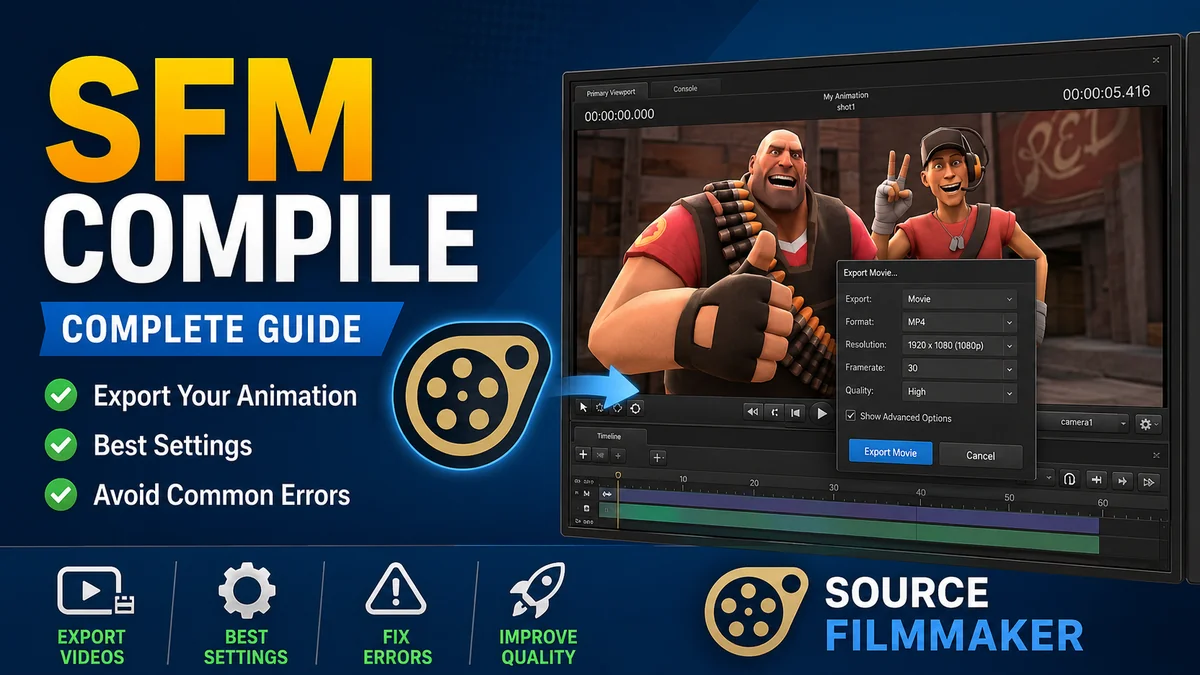
SFM Compile
If you work with Source Filmmaker (SFM), you will eventually come across the term SFM compile. It usually refers to the process of taking source files—such as models, animations, materials, or other assets—and converting them into formats that SFM or the Source engine can actually use.
Compilation can sound more complicated than it is. The difficult part is usually not clicking the compile command. It is preparing the files correctly, understanding the folder structure, and identifying what went wrong when a compiler reports an error.
This guide explains the SFM compilation process in practical terms, including what it does, when you need it, common problems, and ways to make the workflow more reliable.
What Is SFM Compile?
SFM compile generally means compiling custom assets for Source Filmmaker, Valve’s animation and filmmaking software based on the Source engine.
A typical workflow starts with a source asset. For example, a custom 3D model may be created in Blender or another modeling program. That model cannot simply be dropped into SFM and expected to work.
It needs to be converted into Source-compatible files.
Depending on the asset, compilation may involve:
- 3D model files
- Mesh data
- Materials
- Textures
- Skeletons
- Bone information
- Animation data
- Physics information
- Model configuration files
The final compiled files are then placed in the appropriate SFM game or custom content directory.
Why compilation is necessary
Source-based applications use their own asset formats and systems. A modeling program might save a character as an FBX or OBJ file, while SFM expects Source-specific compiled formats.
Compilation acts as the bridge between those two environments.
In simple terms:
Source files → compiler → Source-compatible files → SFM
The exact process varies depending on the type of asset you are creating.
When Do You Need to Compile for SFM?
You do not need to compile something every time you use SFM.
If you are working exclusively with assets that already exist in SFM, there may be no compilation work involved at all.
Compilation becomes relevant when you want to introduce or modify custom content.
Common examples include:
- Adding a custom character
- Creating a new prop
- Porting a model from another Source-based project
- Creating custom animations
- Modifying model materials
- Building custom physics data
- Converting a model from a 3D package into a Source model
For example, suppose you create a custom robot in Blender. The Blender project itself is not normally the final format SFM needs. You would prepare the model, create the necessary Source configuration, compile it, and then test the resulting files in SFM.
Understanding the SFM Compilation Workflow
A successful compilation usually depends on several stages rather than one button.
1. Prepare the source asset
Start with a properly organized model or other asset.
For a model, check:
- Geometry
- Scale
- Orientation
- Materials
- UVs
- Bone structure
- Weight painting
- Animation data, if applicable
Problems at this stage can create confusing compiler errors later.
2. Prepare textures and materials
Textures should be organized separately from the model source.
Source materials commonly require material definition files rather than simply referencing an image file directly.
A material may reference a texture and define properties such as:
- Surface appearance
- Transparency
- Lighting behavior
- Normal mapping
- Specular effects
A texture existing on your hard drive does not necessarily mean SFM will be able to locate it.
3. Create the required configuration files
Many Source assets use configuration files that tell the compiler how to interpret the source data.
For models, this can include information about:
- Model paths
- Material directories
- Skeletons
- Body groups
- Collision models
- Animations
- Attachments
A small path mistake can prevent compilation even when the actual model is perfectly fine.
4. Run the compiler
Once the source files and configuration are ready, the appropriate Source compiler processes them.
The compiler converts the source information into files usable by the Source engine.
The output depends on what you are compiling.
5. Install the compiled files
After compilation, place the generated files into the correct SFM directory.
The folder structure matters.
A model can compile successfully and still fail to appear in SFM if the resulting files are stored somewhere the application does not search.
6. Test the asset in SFM
Open SFM and check the asset.
Look for:
- Missing models
- Purple-and-black textures
- Missing materials
- Broken bones
- Incorrect scale
- Animation problems
- Physics issues
- Console errors
Testing is an essential part of the process. A successful compiler message does not automatically mean the asset will behave correctly inside SFM.
SFM Compile Folder Structure
One of the most common sources of problems is incorrect file organization.
Source Filmmaker relies heavily on recognizable directory structures. If a model expects its materials in one location but they are stored somewhere else, the model may load incorrectly.
A simplified structure might look like:
game/
├── models/
│   └── custom/
│       └── character/
├── materials/
│   └── models/
│       └── custom/
│           └── character/
└── scripts/
The exact structure depends on the asset and the project.
The important principle is that paths referenced by the compiled asset must match the actual locations of the files.
Common SFM Compile Errors
Compilation errors can look intimidating, but many are caused by a relatively small number of issues.
Missing source file
A compiler may report that it cannot find a model, animation, texture, or other input.
Check the path carefully.
Pay attention to:
- Spelling
- Folder names
- File extensions
- Uppercase/lowercase differences where relevant
- Relative versus absolute paths
Do not assume the compiler is searching the folder you expect.
Invalid model data
If the source model contains unsupported or incorrectly configured data, the compiler may reject it.
Potential causes include:
- Incorrect geometry
- Bad bone hierarchy
- Unsupported features
- Invalid weights
- Incorrect export settings
Returning to the original modeling application and checking the asset often solves this class of problem.
Material or texture errors
A model can compile while still displaying incorrectly.
If SFM shows a missing texture, verify that:
- The texture exists.
- The material references the correct texture.
- The material is stored in the expected directory.
- The compiled model points to the correct material location.
This is particularly important when moving assets between computers or projects.
Incorrect paths
Path errors are among the easiest mistakes to make.
For example, a configuration file might reference:
models/custom/robot/while the actual files are located under:
models/custom/robots/That small difference is enough to break the expected relationship between files.
Why Does an SFM Compile Finish but the Model Still Not Work?
This is a common misunderstanding.
A compiler completing its task only tells you that the input was processed successfully enough to produce output. It does not guarantee that every part of the asset is configured correctly.
If the model compiles but does not appear correctly in SFM, check the following:
Check the output location
Make sure the generated files were placed inside a directory SFM can access.
Check the model path
Verify that the model’s expected path corresponds to its actual location.
Check materials
If the model appears but is covered in missing textures, inspect the material and texture paths.
Check the SFM console
SFM’s console can provide useful clues about missing files and other runtime problems.
Restart or refresh the application
Some content changes may not appear immediately. Restarting SFM after installing new assets can help eliminate caching or loading issues.
Best Practices for SFM Compile
A little organization can prevent a surprising number of compilation problems.
Keep source and compiled files separate
Maintain a clean working directory containing your original assets and configuration files.
Keep generated output in a separate location.
This makes it easier to recompile after making changes.
Use consistent names
Avoid unnecessarily complicated filenames.
A predictable naming system makes it easier to identify:
- Models
- Materials
- Textures
- Animations
- Physics files
Avoid unnecessary path changes
Once your project works, avoid constantly moving folders around.
Changing directory structures can invalidate references in configuration files and material definitions.
Test one change at a time
If you change the model, materials, skeleton, and animations simultaneously, diagnosing a new problem becomes much harder.
Instead, make one significant change, compile, and test.
Keep backups
Always retain your original source files.
Compiled files are outputs. If something goes wrong, you should be able to return to the editable source rather than rebuilding the project from scratch.
SFM Compile vs. Export
The terms export and compile are sometimes used interchangeably, but they describe different stages.
Exporting usually means taking data from a program such as Blender and writing it into an intermediate format.
Compiling means processing that source or intermediate data into a format that the Source engine can use.
A simplified example is:
Blender project
      ↓
Model export
      ↓
Source-compatible input
      ↓
SFM/Source compiler
      ↓
Compiled Source asset
      ↓
Source Filmmaker
Understanding this distinction makes troubleshooting much easier.
If the exported file is wrong, recompiling will not magically fix it. Likewise, a correctly exported model can still fail because of a bad compilation configuration.
Common Mistakes to Avoid
Putting files in random folders
Source assets often depend on specific paths. Randomly moving files after compilation can break those relationships.
Ignoring compiler warnings
Not every warning means compilation has failed, but warnings can reveal problems that later become visible in SFM.
Read the compiler output instead of immediately closing the window.
Using the wrong compiler
Different Source asset types may require different tools or workflows. Make sure the tool matches what you are trying to build.
Forgetting materials
A model’s geometry and textures are separate pieces of the workflow. Getting the model to compile does not automatically guarantee that its materials are available.
Changing too many things at once
When troubleshooting, controlled changes are much more effective than repeatedly recompiling a project with several unknown variables.
Expert Tips for a Smoother SFM Compile Workflow
A reliable workflow is more valuable than memorizing individual compiler commands.
Start with a simple asset whenever possible. Get one model working before adding complex animation systems, multiple materials, advanced shaders, or complicated physics.
When an error appears, identify which stage failed.
Ask:
- Did the original asset export correctly?
- Did the compiler read the source file?
- Did the compiler generate output?
- Are the output files in the correct directory?
- Can SFM find the model?
- Can SFM find the materials?
- Does the model behave correctly after loading?
This approach turns a vague “SFM compile error” into a much smaller troubleshooting problem.
It is also useful to keep a clean project template. Once you have a directory structure and configuration that works, duplicate that structure for future projects rather than starting from scratch each time.
Frequently Asked Questions
What does SFM compile mean?
SFM compile usually refers to converting custom source assets into formats that Source Filmmaker and the Source engine can use. The exact process depends on the type of asset being created.
Do I need to compile every SFM model?
No. Existing SFM models are already compiled and ready to use. Compilation is mainly required when creating, converting, or modifying custom assets.
Why does my compiled model have missing textures?
The most likely causes are incorrect material paths, missing texture files, or a material that references the wrong texture. Check the complete model-to-material-to-texture path.
Can Blender models be used directly in SFM?
Generally, no. A Blender project uses formats and data structures that are different from the formats expected by Source Filmmaker. A suitable export and compilation workflow is normally required.
Why does my SFM compile fail?
Possible causes include invalid source data, incorrect configuration, missing files, unsupported model features, or incorrect paths. The compiler’s error output is the best place to start diagnosing the specific problem.
Can I recompile an SFM model after editing it?
Yes. If you have the appropriate source files and configuration, you can modify the asset and compile a new version. Keeping the original source project makes this process much easier.
Is compilation required for SFM animations?
It depends on how the animation is being created and distributed. Some animation workflows use Source-specific compilation steps, while other animation data may be handled differently. The required process depends on the format and intended use.
What is the best way to troubleshoot an SFM compile problem?
Work backward through the pipeline. Verify the source asset, configuration, compiler output, file paths, materials, and final SFM installation one stage at a time. Avoid changing several variables simultaneously.
Final Thoughts
Learning SFM compile workflows becomes much easier once you stop treating compilation as a single command and start viewing it as a pipeline.
Your source asset needs to be prepared correctly, paths need to match, materials need to be available, and the resulting files need to be installed where SFM can find them. When something fails, identifying the stage responsible is usually more productive than repeatedly running the compiler.
For custom SFM work, good file organization and careful testing are just as important as the compiler itself. Build a simple workflow that works, keep your source files organized, and use that setup as the foundation for more complex projects.
About the Author