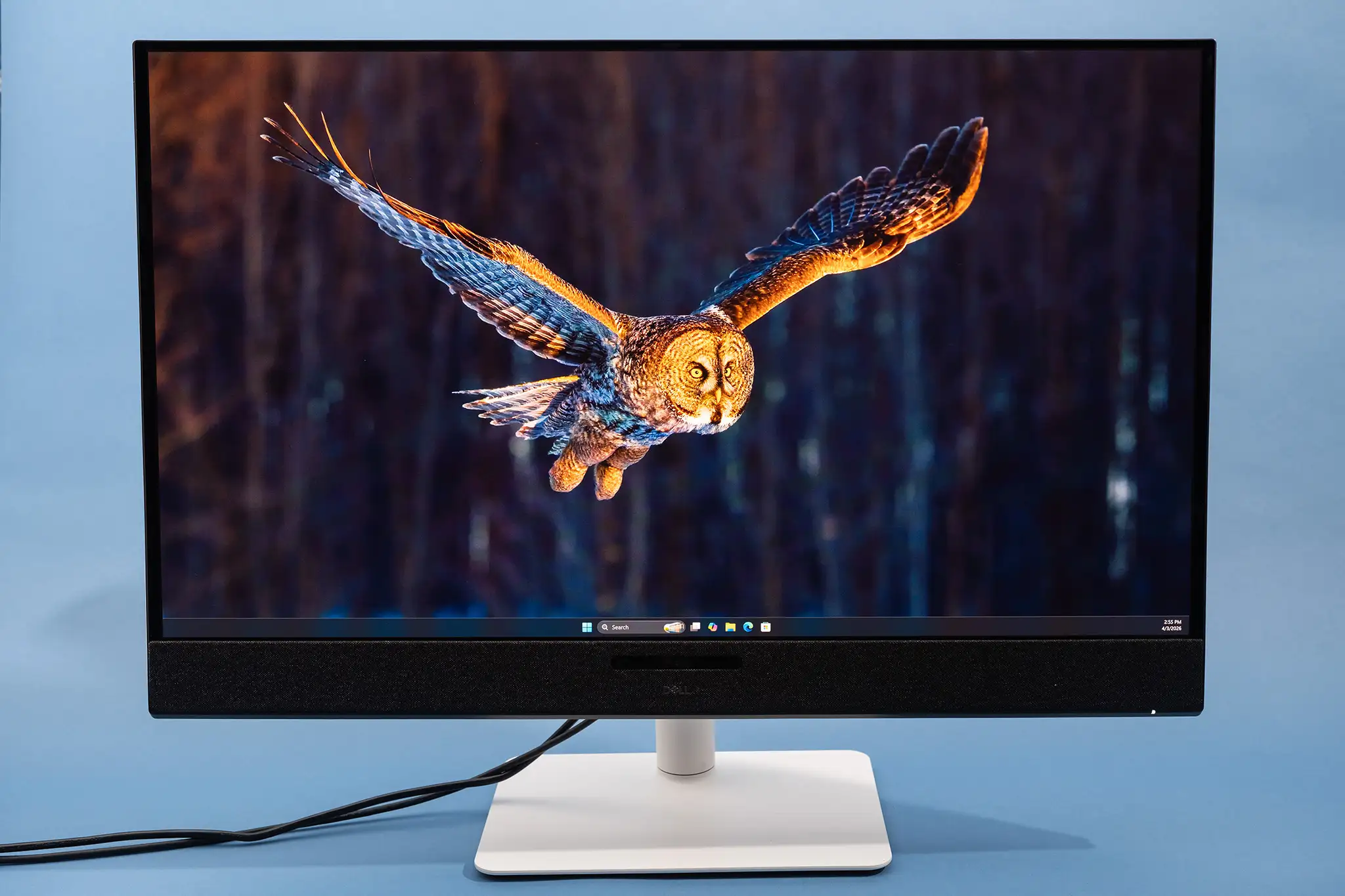
4K Monitor
A 4K monitor is one of the few upgrades you notice in the first five minutes and keep appreciating for years. Text looks printed rather than rendered. Photos hold detail you didn’t know was there. You can fit two full-size windows side by side without squinting.
But the category is also full of confusing specs, and a “4K” sticker tells you less than you’d think. Two monitors with the same resolution can feel completely different depending on size, panel type, refresh rate, and what’s plugged into them. This guide covers what to look for and what to ignore.
What “4K” actually means
In monitors, 4K means 3840 × 2160 pixels, also called UHD. That’s about 8.3 million pixels, exactly four times what a 1080p screen has. Cinema 4K is slightly wider, but you won’t run into it on desktop displays.
More pixels only help if they’re packed into a size where you can see the difference. That’s pixel density, and it’s why size matters as much as resolution.
| Screen size | Approx. pixel density at 4K |
|---|---|
| 27 inches | ~163 PPI |
| 32 inches | ~138 PPI |
| 43 inches | ~103 PPI |
At 27 inches, text is very crisp. At 32 inches, it’s still sharp, with more room to spread out. At 43 inches, you’re getting close to the density of a typical 1080p monitor on a desk, which is fine for a TV-like setup but less impressive for text.
Why a 4K monitor is worth it (and when it isn’t)
The gains are clearest in a few situations:
- Reading and writing. Fonts render with smoother edges, which reduces eye strain over a long day.
- Photo and video work. You can view a 4K frame at native size, with room left for toolbars.
- Multitasking. A 32-inch 4K screen gives you roughly the workspace of four 1080p windows.
- Media and games. Movies, streaming, and modern games look noticeably cleaner.
It’s a weaker choice if you play competitive shooters where frame rate matters more than detail, or if your computer is old. Driving four times the pixels of 1080p takes real graphics horsepower, and integrated graphics on older machines can struggle with anything beyond desktop work.
Size: 27 or 32 inches?
This is the decision most buyers get wrong, so it’s worth slowing down.
27 inches gives the sharpest image. It suits a desk where you sit close, around arm’s length. The catch is that at native 4K, interface elements are tiny, so you’ll almost always use display scaling.
32 inches is the comfortable middle ground for many people. Text stays sharp, and you can run closer to 125–150% scaling without things feeling cramped. It needs a deeper desk, though.
Ultrawide and larger panels are a separate conversation. If you want a wide canvas, check the actual resolution before assuming it counts as 4K.
Panel type: IPS, VA, or OLED
IPS panels are the safe default. Colors look consistent from any angle, and they’re widely available. Contrast is average, so blacks look slightly grey in a dark room.
VA panels have deeper contrast and often cost less. Trade-offs include narrower viewing angles and, on some models, slower pixel response that can smear fast motion.
OLED gives perfect blacks, excellent motion clarity, and vivid color. The honest downsides are higher prices, lower full-screen brightness on many models, and the risk of burn-in if you leave static elements, like a taskbar, on screen for thousands of hours. Modern panels include mitigation features, but if you use one for office work all day, factor that in. Text rendering on some OLED panels can also look slightly softer than on a comparable IPS screen.
For a mixed-use desk, IPS is hard to go wrong with. For movies, games, and dark-room viewing, OLED is the one that makes people stop mid-sentence.
Refresh rate and response time
Many 4K monitor still run at 60Hz, which is perfectly fine for work, writing, and video. If you game or just like smoother cursor and scrolling motion, 120Hz or higher is a real improvement you can feel.
Keep realistic expectations here. Hitting 144 frames per second at 4K in demanding games requires a high-end graphics card. A high refresh rate monitor is still useful for desktop smoothness even when your games don’t reach those numbers.
Ports and cables
This is where purchases quietly go wrong. Resolution, refresh rate, and cable all have to agree.
- HDMI 2.0 handles 4K at 60Hz.
- HDMI 2.1 is needed for 4K at 120Hz or higher in most cases, including on current game consoles.
- DisplayPort 1.4 supports high refresh rates at 4K, usually with a compression feature called DSC.
- USB-C with DisplayPort Alt Mode can carry video, data, and charging over one cable, which is excellent for laptops. Check that the monitor supports it and how many watts it delivers.
Use the cable that shipped with the monitor when possible. A cheap, old cable is a common reason people can’t unlock the refresh rate they paid for.
Color, brightness, and HDR
If you edit photos or video, look at color gamut coverage (sRGB, DCI-P3, Adobe RGB) and whether the manufacturer provides factory calibration. A monitor that covers most of DCI-P3 is a good target for video work.
HDR is the most overhyped label on the box. Entry-level “HDR” support often means the monitor accepts an HDR signal without making it look any better. Real HDR needs high peak brightness and good local dimming, or an OLED panel. Independent reviews with measurements are more trustworthy than the spec sheet here.
How to set up a 4K monitor properly
- Check your hardware. Confirm your computer’s graphics output supports 4K at your target refresh rate.
- Connect with the right cable and port. Use HDMI 2.1 or DisplayPort for high refresh rates.
- Set the resolution to native. Look for 3840 × 2160 in your display settings.
- Set the refresh rate. Windows sometimes defaults to 60Hz even on faster panels.
- Adjust scaling. On Windows, 125–150% suits many 27–32 inch screens. macOS offers scaled resolutions that suit these sizes well.
- Tune the picture. Turn off unneeded “dynamic” or “vivid” modes, and lower brightness to a comfortable level for your room.
Common mistakes
- Buying on resolution alone. A poor-quality 4K panel can look worse than a good 1440p one.
- Ignoring scaling. Running 4K at 100% on a 27-inch screen makes text uncomfortably small.
- Assuming any port works. Plugging a 120Hz monitor into an HDMI 2.0 port caps you at lower rates.
- Trusting HDR labels. Read measured reviews, not marketing names.
- Forgetting your graphics card. Gaming at 4K is demanding, so match the monitor to the GPU you actually have.
- Not checking the stand. Height and tilt adjustment affect comfort more than most spec sheet items.
Expert tips
- Sit about an arm’s length away and test text clarity in person, if you can, before committing.
- For laptop users, a USB-C monitor that charges your laptop removes a lot of cable clutter.
- If you mostly work in documents and spreadsheets, prioritize size, stand quality, and text sharpness over refresh rate.
- Matte coatings handle glare better than glossy ones in bright rooms, though glossy panels often look richer.
- Look for return policies. Dead pixels and backlight bleed vary from unit to unit, and a monitor can look different in your room than in a store.
Frequently asked questions
Is a 4K monitor worth it for office work?
For most people, yes. The improvement in text clarity and screen space is noticeable every day. If your budget is tight, a good 1440p monitor is still a solid option.
What size 4K monitor is best?
27 inches is the sharpest, and 32 inches offers more room while staying clear. Pick based on how far you sit and how much desk space you have.
Do I need a special graphics card for a 4K monitor?
For desktop work and video, most modern computers handle 4K fine. For gaming at high frame rates, you’ll want a powerful dedicated GPU.
Can a 4K monitor run at 144Hz?
Yes, many can, but you need a compatible cable and port (DisplayPort 1.4 or HDMI 2.1) and a graphics card that supports it.
Is 4K OLED better than 4K IPS?
OLED has superior contrast and motion clarity, while IPS is typically cheaper, brighter in full-screen scenes, and less worried about burn-in. The better choice depends on your content and how you use the screen.
Why does text look small on my new 4K monitor?
The pixels are tiny, so interface elements shrink at 100% scaling. Increase display scaling in your system settings.
Will a 4K monitor work with my laptop?
Most recent laptops support it through HDMI, DisplayPort, or USB-C. Check the port specs for the refresh rate you want.
Final thoughts
A good 4K monitor makes everyday computing nicer: sharper text, more working space, and better media. The best one for you comes down to a few choices. Pick a size that suits your desk, choose a panel type that matches how you use it, and make sure your ports, cable, and graphics hardware can deliver what the spec sheet promises. Get those right, and the resolution takes care of itself.
About the Author